
You can easily add your booking page link to your Facebook page’s bio. To do this, click the “Edit bio” button, then paste the link into the text.
Pro tip: In the intro section, you can use max. 101 characters, so try to be short and to the point.
You also have the option to add your booking page link to the primary button. To do this, on your Facebook page, in the settings, click on the “Edit Action Button” option. Here, choose the Contact us button, and in the URL field, enter the link of your booking page.
Furthermore, you can share your booking page in a post. This can be very useful, especially when you start introducing online appointment booking to your clients.
If you want to make the online booking option even more visible, then you can pin the shared post to the top of your page. To do this, you need to click on the three dots in the corner of the post and then select the “Pin Post” option.

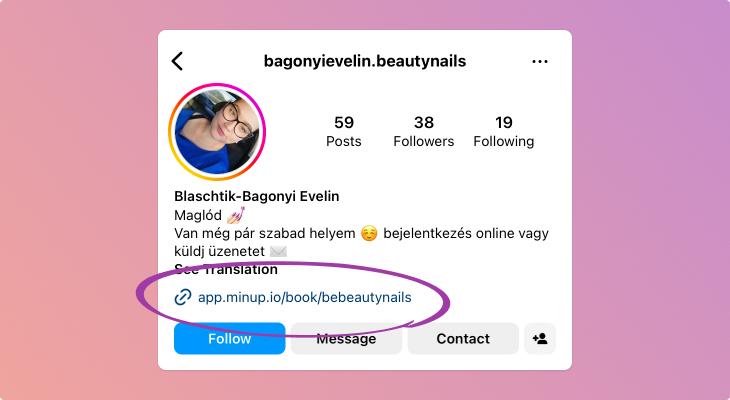
It’s also worth placing the link to your booking page on your Instagram page. You can put it in your bio or even in a story, from where they can book an appointment with you immediately.
In a story, you can place a clickable link with a link sticker: when editing, select the link sticker, paste the link to your booking page, then place it on the image or video. You can move and resize the sticker and also rewrite its text, for example, to “Book an appointment”, and visitors will be taken directly to your booking page by clicking on it.
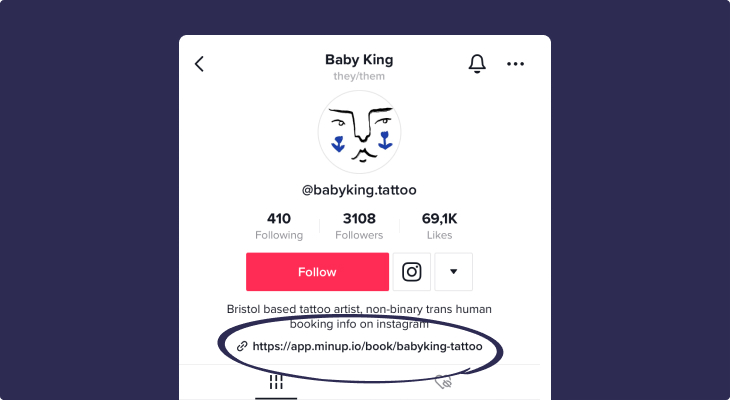
Pro tip: Since Instagram does not allow clickable links in post texts, it’s worth referring to this with the phrase “booking link in bio”.
If you work as a coach or salesrep and the first step in your client acquisition process is a short online introductory conversation, it’s worth adding your booking page to your LinkedIn profile. This feature is for LinkedIn Premium subscribers.
To set this up, click the pencil icon next to the LinkedIn Premium logo. Scroll down to the “Custom button” section. Select the “Book an appointment” option. Paste the link to your Minup booking page.
Pro tip: From a marketing perspective, it’s always advisable to use only one Call to Action so that interested parties know exactly what the next step is. In this case, this is your online booking link. With the “Book an Appointment” button, your LinkedIn profile becomes a direct client acquisition tool.

The easiest way to have a booking option on your website is to create a button that, when clicked, opens your booking page. In Minup, you can do this by clicking on “Website embed”in “Settings” and then selecting “Booking now button” option. Here you can also get help on how to create a button in your website editor. The button can be in the menu, in the hero image, in the contact section, or even separately per service.
Menu
The great advantage of the menu is that it is extremely visible, as it is usually located at the top of the page.
Pro tip: The button can be more prominent than the rest of the menu, thus attracting even more attention.
Hero Image
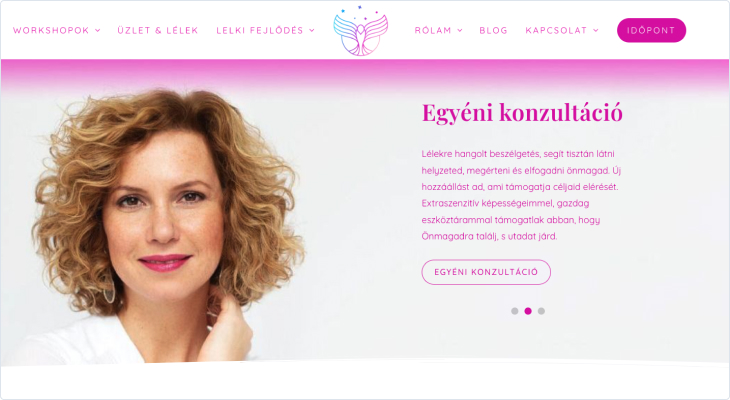
Another very visible place on the website is the hero image, i.e., the main page’s opening image. It’s also worth placing a button here, as this section is visible without the visitor having to scroll further.
Pro tip: Use language that clearly describes what will happen after clicking (e.g., Book an appointment, Book now, etc.).

Contact
The booking button can also work great on the contact page, as this is also a form of contact. Similar to a phone number or email address, online booking can also appear as a possible option.
Pro tip: Instead of a general form, use Minup’sformfeature, which allows you to ask questions to your clients as part of the booking process, instead of them having to fill out a separate form.

Services
If you have multiple services and they have separate subpages, then it’s also worth placing booking buttons here so that the links point directly to the services. This way, visitors can immediately choose an appointment for a specific service, without having to search among the others.
You can easily do this in Minup, as every service has its own link, which you can copy with one click in the admin interface.

Besides the button, the other option to have a booking option on your website is direct embedding. In this case, the booking interface appears as part of your page in the form of a widget. The advantage of this solution is that you don’t have to redirect visitors to a separate page. Its disadvantage is that it takes up more space.
In Minup, you can embed with a few clicks and you don’t need any special IT knowledge.
In the admin interface’s booking menu item, click the “Website embed” button and there select the “Embed directly” option. Here you will see a short code snippet; copy this and paste it into your page. Here you can also get help on how to insert a custom code snippet in your website editor.
Pro tip: If you want to embed the calendar for a specific service, then select the desired service from the dropdown menu.
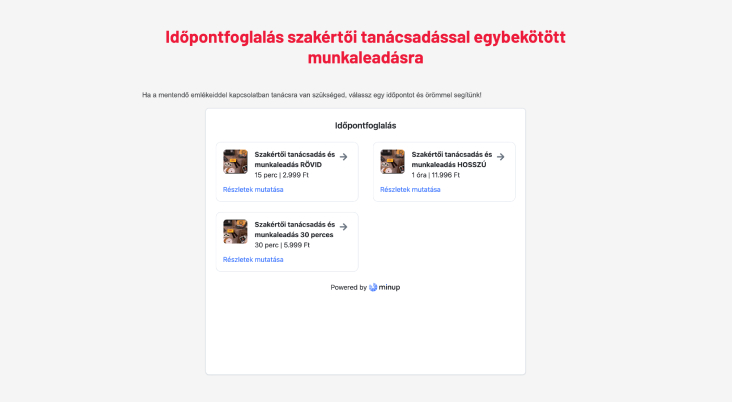
One of the most common ways to share our booking page with our clients is to send it to them in a message (e.g., Email, Messenger, WhatsApp, etc.). Instead of back-and-forth messaging, you can simply send the available appointments as a link.
Pro tip #1: Be polite when sharing your booking page link. Instead of simply saying “You can book here”, first ask your client when it would be convenient for them, e.g. “Feel free to share some times when you are available, or book half an hour in my Minup calendar if that’s easier.”
Pro tip #2: You can also place the link to your booking page in your email signature, so your clients always have the option to book an appointment with you.

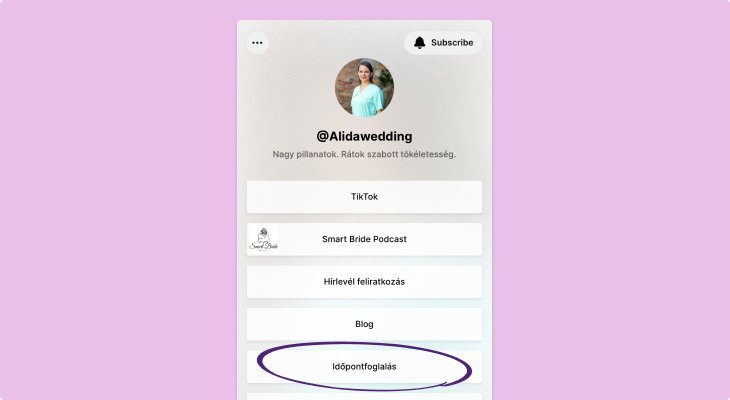

This concludes the list; I hope we were able to give you some ideas for placing your booking page. If you have more ideas or unique solutions, write to us at [email protected] so we can expand the list 😉